How to track email in Outlook
The normal Outlook compose window can insert local or online pictures, but Microsoft's documented workflow does not provide a field for an arbitrary remote image URL. To use a MailPixel tracking pixel, send through an HTML-capable template, CRM, or API that preserves a remote <img> source.
If you are deciding how to track email in Outlook, start with the sender's HTML capability. Outlook's picture button is designed around files, stock images, and supported online sources. Uploading a downloaded 1×1 image would embed or attach a copy and disconnect it from the hosted MailPixel URL. That copy cannot report requests to MailPixel.
Use an HTML-capable sending path
This is the reliable way to track email in Outlook without pretending its regular editor has a remote URL field.
- Create the hosted pixel
Generate a MailPixel pixel and choose Copy HTML. Keep the private activity page out of the message.
- Open your HTML source
Use a transactional email provider, campaign tool, CRM template, Outlook add-in, or another approved system that lets you edit message HTML.
- Paste the complete image tag
Place it near the end of the message body. Confirm the system preserves the
mailpixel.org/p/source instead of downloading or rewriting the image. - Send to a controlled Outlook inbox
Compare the activity before delivery, after delivery, and after opening. Outlook security systems and image caching can also create or suppress requests.
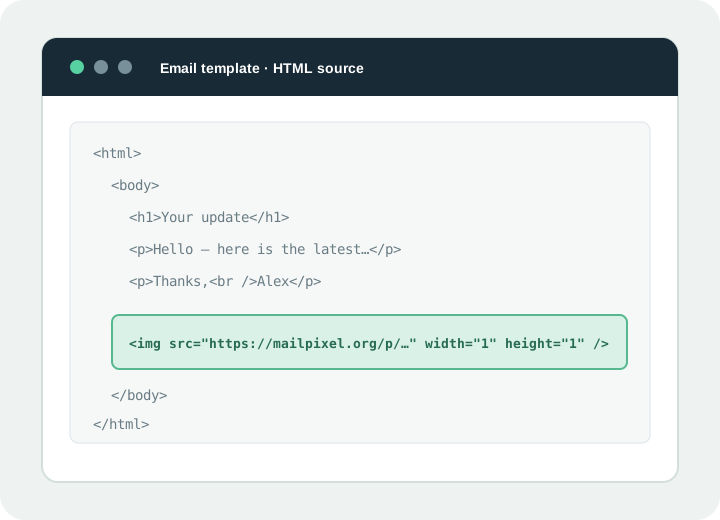
<img src="https://mailpixel.org/p/YOUR_PIXEL_ID"
width="1" height="1" alt="" />Which Outlook route should you use?
“Outlook” covers several products. The available editor depends on your account, app, add-ins, and organization policy.
| Outlook workflow | Can it preserve MailPixel HTML? | Action |
|---|---|---|
| Outlook.com or Outlook on the web compose | No documented raw-HTML or arbitrary image-URL field | Use an approved add-in or an external HTML sender. |
| New or classic Outlook normal compose | Picture insertion is not the same as source editing | Use an HTML template system or add-in that explicitly preserves remote images. |
| CRM, campaign tool, or sending API | Usually, when HTML source is supported | Paste the complete snippet and inspect the final delivered source. |
For a work or school mailbox, check organization policy before adding an add-in or routing a message through another sending service. The technical ability to preserve HTML does not replace your employer's security, privacy, and retention requirements. A small internal test should use ordinary, non-sensitive content and accounts you are allowed to test.
Verify the final email, not just the editor
An editor preview can look correct while the sending service rewrites the message.
Inspect the source
Confirm the delivered message still contains the full mailpixel.org/p/ URL.
Compare timestamps
Note activity before opening. A pre-open request may come from an automated scanner or proxy.
Ask for a reply when it matters
A request event cannot prove attention, understanding, approval, or identity.
That is how to track email in Outlook without turning an attachment into a fake pixel or claiming that an automated image request proves a read.
Microsoft's current support pages document inserting pictures and online pictures in Outlook and inline images in Outlook.com. They do not document an arbitrary remote-image URL field in normal compose. Checked September 20, 2026.