 MailPixel
How to add a Gmail tracking pixel
Gmail can insert a MailPixel URL through Insert photo → Web Address (URL). We tested the full workflow with a real email. Requests appeared before the recipient opened the email, and another appeared when the recipient opened it in a follow-up test. Use the activity as a clue, not a read receipt.
A manual Gmail tracking pixel is possible for an occasional test. It is a fragile workflow and its first request may be Gmail's infrastructure. For repeated sending, use the Gmail extension so you do not have to paste a remote image URL into every draft.
Add the pixel to a Gmail draft
Use the public pixel URL. Never paste the private activity link into a message.
- Create a pixel
Use the generator, give the test a non-sensitive label, then choose Copy pixel URL. Keep the activity page open in its separate tab.
- Open a Gmail draft
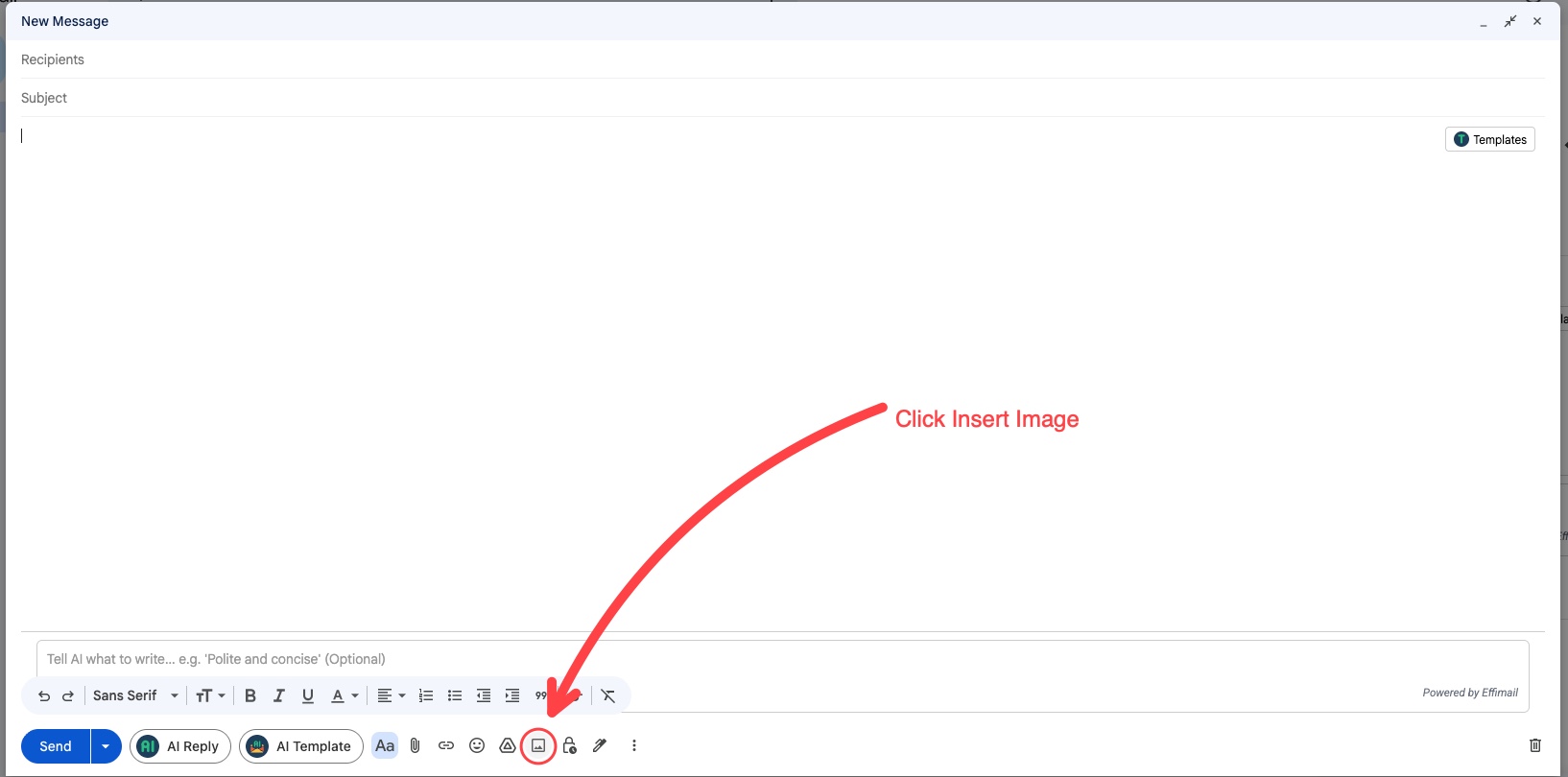
Write the subject and message first. In the compose toolbar, choose Insert photo.
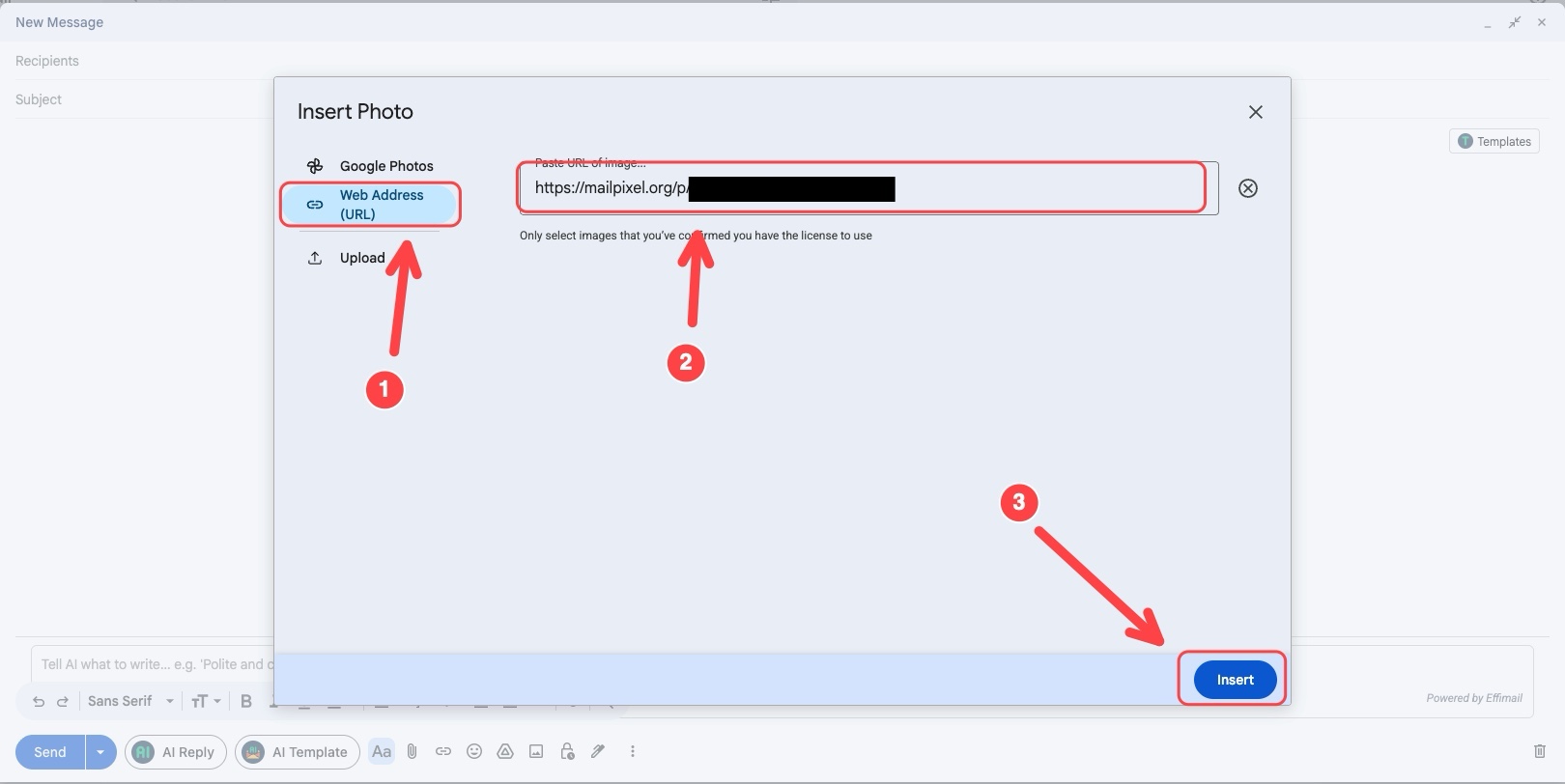
- Choose Web Address (URL)
Paste the URL beginning with
https://mailpixel.org/p/. Wait until Gmail accepts the image, then choose Insert. - Send a controlled test
Send to a different email account you control, preferably in a separate browser. Open your private activity page to see automatic color-coded estimates. Avoid sending to the same account. Do not open the public pixel URL in a browser; that creates another request.
What happened in the real Gmail tracking pixel test
The result shows why a Gmail tracking pixel is not the same as a confirmed human open.
| Operation | Image requests | Observed source |
|---|---|---|
| 9:52:48 PM — URL preview | +1 | Gmail image proxy |
| 9:53:08 PM — image inserted into draft | +1 | Gmail image proxy |
| 9:53 PM — send; recipient stays in the list | No additional request before opening | 2 total requests so far |
| 9:54:41 PM — recipient opens the email | +1 at 9:54:43 PM | Gmail image proxy |
| 9:55:21 PM — recipient opens it again | +1 at 9:55:23 PM | Gmail image proxy |
| 9:57:41 PM — sender views the sent copy | No additional request observed in this check | 4 total requests |
The same User-Agent appeared in all four requests. Two came during preparation and two followed recipient-side opens. This test therefore does not support a reliable server-only rule for distinguishing them. Browser extensions were present; this is one observed workflow, not a universal Gmail benchmark.
Do not discard the first three requests as a rule. An earlier test had three requests before opening; this one had two. Another email may produce a different number, and a recipient can open an email immediately. Gmail proxy requests can accompany both preparation and recipient activity.
No new request does not mean “unread”: cached or blocked images may prevent a request even when someone reads the message.
Choose the right Gmail tracking pixel workflow
The manual method and the extension solve different frequency problems.
| Workflow | Best for | Main limitation |
|---|---|---|
| Insert photo by URL | A one-off controlled test | Repeated manual steps; proxy requests can appear before a human open. |
| MailPixel Chrome extension | Regular Gmail sending | Requires installing the extension and reviewing its permissions. |
| Copy HTML | An email API or template editor with HTML source | Normal Gmail compose does not provide a supported raw-HTML editor. |
Avoid a common mistake: pasting the copied <img> tag into Gmail's visible message body displays code or plain text. If you are using normal Gmail compose, use the image URL workflow above or the extension.
Why do requests appear before an email is opened?
Inserting a remote image can load a preview. Viewing a draft or sent message can load it again. Email services may also fetch images automatically. MailPixel records the image request, which does not reveal which of these actions happened.
How to read the activity labels
- Possibly a system or preview load: the initial batch stays gray. Consecutive loads with the same estimate and source are grouped; expand to see each record.
- Possibly opened: a later image load arrived after at least 60 seconds without a new request. Shown in green, but automated loading is still possible.
- Your activity: a request you labeled with “This was me.” Undo restores its previous grouping.
No sending confirmation is needed. These timing estimates can miss fast readers and flag delayed automatic loads. Old records without enough evidence remain uncertain. All original requests remain stored. Copy HTML and Copy pixel URL remain available on the private activity page. For an explicit confirmation, ask the recipient to reply.
Mailsuite also documents limitations of self-open detection across clients: self-open notifications and testing with another account.
Test and interpret it safely
A short checklist prevents false conclusions and accidental self-requests.
- Use a label that contains no recipient name, email address, or message content.
- Copy the public pixel URL, not the private activity link.
- Record the request count before Send and before opening the test inbox.
- Treat automated loading, forwarding, blocked images, and caching as alternative explanations.
Interface and behavior checked in Gmail on September 20, 2026. Gmail can change its compose interface and image handling. MailPixel is independent and is not affiliated with Google.